One site, many AI clients: give each connection its own access level in Shilpi
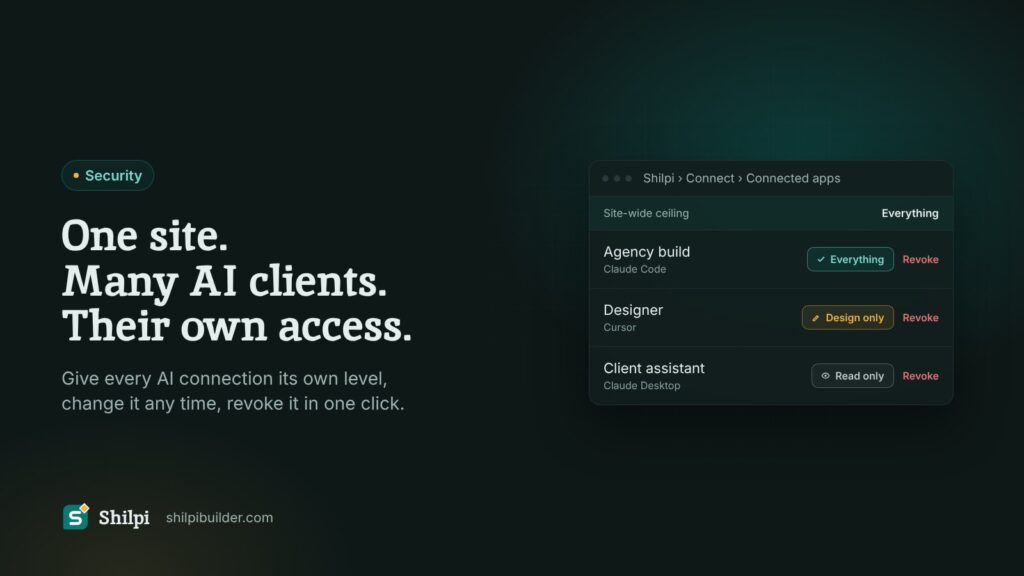
Give every AI client its own Application Password and its own access level: Everything, Design only or Read only. Change it later without a new password, or revoke it in one click.
The question we hear most from clients who are new to AI-built sites is not “can the AI build it?”. It is “who else can change my site, and how far can they go?”. A business owner wants to know that an agency’s AI can do the build, that their own assistant can look but not touch, and that any connection can be switched off in one click. Shilpi answers that at the level of every single connection.
Every AI client gets its own password and its own level
Shilpi connects AI clients through standard WordPress Application Passwords. In Shilpi › Connect you pick the client (Claude Code, Claude Desktop, Codex, Cursor, VS Code, GitHub Copilot, Windsurf, Gemini CLI, Cline, Zed and more), name the connection and create a password for it. Each password belongs to one client, so you always know which tool is talking to your site.
Next to the name sits This connection may. That is where you decide how far this one connection may go:
- Everything: full building access, for the developer or agency doing the work.
- Design only: pages, templates and styling, without wider site changes.
- Read only: the AI can read and audit the site, but cannot change anything.
The site-wide level is the ceiling. A connection can be given less than the site default, never more.
Change it later without a new password
Needs change after launch. Under Manage connected apps every connection shows its current level in a dropdown. Move a connection from Everything to Read only when the build is finished, and the same password keeps working at the new level. Nothing has to be reconfigured in the AI client.
When a connection is no longer needed, click Revoke. Its next authenticated request is blocked immediately. Turning the Shilpi server off removes the MCP endpoint entirely, so no existing credential can edit the site.
Trust is not all or nothing. Give each AI exactly the access its job needs, and take it back the moment the job is done.
How this looks on a real client project
- During the build: the developer’s AI client runs with Everything.
- At handover: the developer’s connection drops to Read only for the support period, or is revoked.
- The client’s own assistant: starts on Read only, so it can answer questions about the site and suggest changes without making them.
- A designer joining later: gets Design only for the redesign of a few pages.
Every change still lands as a normal WordPress revision, so a page edited by AI can be compared and restored like any other edit.
Why we built it this way
An AI layer on a business site should behave like a well run team account: one login per person, the smallest role that does the job, and a clear off switch. Application Passwords are a WordPress standard, so there is no extra service to trust and no OAuth app to register. Shilpi adds the part WordPress does not have on its own: a separate AI access level for each password, changeable at any time.
This pairs with the ownership work in Shilpi 2.6. Read Shilpi 2.6: export your Code Hub as a plugin and Ownership, licence and maintenance for the rest of the handover story.