How to Translate a WordPress Site with AI and TranslatePress
A step-by-step guide to translating a WordPress site with TranslatePress and Hybrid AI Translator: engines, tone, glossary and review.
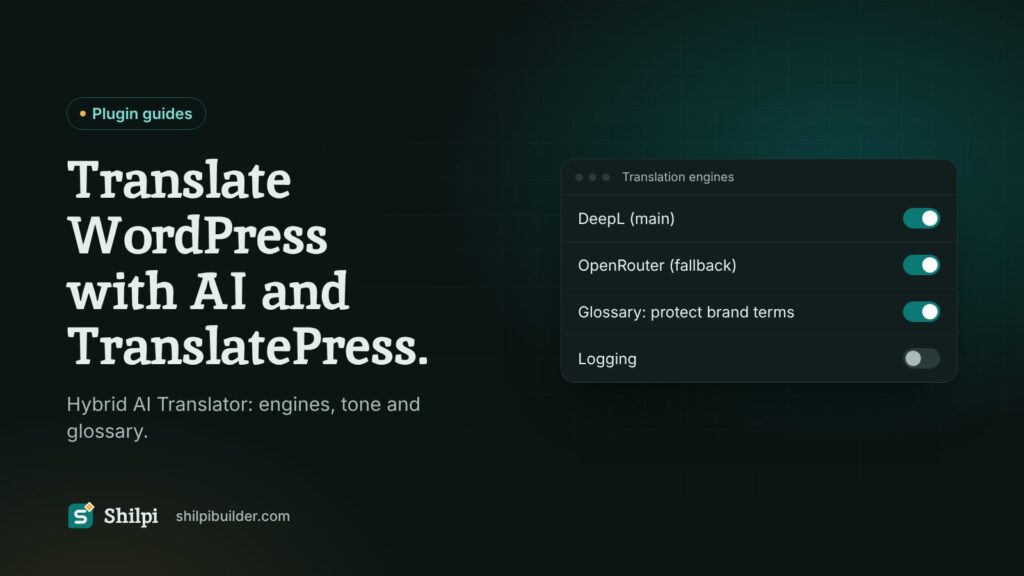
Quick answer: Install TranslatePress, add Hybrid AI Translator, pick a main translation engine and an optional fallback, set a tone and a glossary for your brand terms, then let TranslatePress translate the site. Review the result in the translations editor and fix any string by hand.
What you need
- A WordPress site with TranslatePress installed and activated. Hybrid AI Translator works on top of it.
- The free Hybrid AI Translator plugin from WordPress.org, or the Pro version for DeepL, AI engines and the extra tools.
- For DeepL or an AI service: your own API key from that provider. Usage is billed by the provider, not by the plugin.
Free or Pro: which engines you get
The free plugin translates with Google Translate. Hybrid AI Translator Pro adds:
- DeepL, with a DeepL Free or DeepL Pro key.
- AI services: OpenAI, Groq, OpenRouter and DeepSeek, chosen from a dropdown that fills in the address and model for you.
- A fallback engine that runs only when the main engine fails.
- Tone and style, a glossary, a translations editor and export and import of translations and settings.
Step 1: Set up TranslatePress
In TranslatePress settings, choose your default language and add the languages you want. Save. At this point TranslatePress knows what to translate, but not which engine to use.
Step 2: Choose a main engine and a fallback
Open the Hybrid AI Translator settings. Pick the main engine, then paste its API key. If you use Pro, add a fallback engine as well. A sensible pair is DeepL as the main engine for European languages, with an AI service as the fallback.
Each engine has its own Test button. Press it before you translate anything. It tells you at once whether the key works and the service answers.
Step 3: Set the tone
AI engines follow a tone preset: Professional (the default), Friendly, Formal or Simple. Pick the one that matches how your site already speaks. A shop for young customers reads better in Friendly. A law firm should stay Formal.
Step 4: Protect brand terms with the glossary
Machine translation likes to translate product names, which is rarely what you want. Add your brand name, product names and any technical terms to the glossary, per language direction. If you already keep a DeepL glossary, import it as a CSV file.
A few minutes here saves hours of fixing later.
Step 5: Translate the site
Go back to TranslatePress and translate your pages, or open them in the TranslatePress editor and let automatic translation fill in the strings. Start with one important page, read it in the new language, then continue with the rest.
Step 6: Review and fix in the translations editor
No engine is perfect. The translations editor in Pro lets you search stored translations, update them and replace a word everywhere, with a preview and undo. Fix the handful of strings that sound wrong and the whole site improves.
Step 7: Back up your work
Use export to save translations and settings as a JSON file. You can restore it on another site, which makes staging to live moves much easier.
Tips for better results
- Translate a short test page first and compare engines with the Test button before a full run.
- Keep logging off unless you are tracking down a problem. It is off by default and keeps at most 50 entries.
- Re-check menus, buttons and form messages. Short strings without context are where engines slip most often.
FAQ
Is TranslatePress required?
Yes. Install and activate TranslatePress first. Hybrid AI Translator adds engines and tools to it.
Are AI API keys included?
No. You use your own account with DeepL, OpenAI, Groq, OpenRouter or DeepSeek, and the provider bills you for usage.
How much does Pro cost?
$5 a year for one site, $20 once for one site with lifetime updates, or $150 once for up to ten sites. Every plan has all Pro features and a 14-day money-back guarantee.
What happens if my main engine fails?
With Pro, the fallback engine takes over for that request, so the translation still completes.